

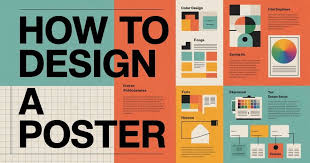
A practical guide explaining how to build a clear, print-ready poster layout using common poster design workflows and basic quality checks.
Posters are often used when information needs to travel fast—an event date, a meeting notice, a sale weekend, a school play, or a community announcement. Because they are viewed at a distance, small decisions about type size, contrast, and layout hierarchy matter more than decorative details.
This guide is for people who need a custom poster quickly and do not want to learn professional design software. It focuses on a repeatable process that works for common poster types, from simple text notices to photo-led event posters.
Poster design tools typically differ in what they make easy. Template-first editors help users start with a working layout and adjust it quickly. Print-first workflows emphasize size selection, margins, and exporting or ordering in a format that is suitable for printing.
Adobe Express is an accessible place to begin because it offers poster templates and straightforward editing controls that keep the work focused on readability and spacing rather than complex design features.
Step-by-Step How-To Guide for Using Poster Design Tools
Step 1: Choose a poster size and start from a template in Adobe Express
Goal
Set the correct dimensions early so the design doesn’t need reformatting later.
How to do it
- Decide where the poster will be displayed (indoor wall, shop window, bulletin board) and estimate viewing distance.
- Choose a size that matches the placement (common sizes like letter, tabloid, or A-series are easier to print).
- Start with a poster template and insert your working headline and key details right away.
- Keep the first draft simple: headline, date/time, location, and one callout line (optional).
- Save a baseline version before changing fonts or adding graphics.
What to watch for
- Changing size late can break line wraps and spacing.
- Templates may include subtle textures that reduce text contrast.
- Busy layouts can look cluttered when viewed from several feet away.
Tool notes
- You can print posters online with Adobe Express by using the tool’s poster-oriented templates and a straightforward editing flow.
Step 2: Write the poster copy for scanning, not reading
Goal
Make the message easy to understand in a few seconds.
How to do it
- Identify the “must-know” items: what it is, when, where, and how to learn more.
- Reduce the headline to a short phrase that can be read at a distance.
- Turn long sentences into short lines or bullets.
- Put optional details (sponsors, extra notes, fine print) in a smaller section at the bottom.
- If using a URL or QR code, confirm it is short, correct, and readable.
What to watch for
- Too much text forces small type, which defeats the poster’s purpose.
- Mixed date/time formats can confuse readers (choose one format and stick to it).
- Overuse of all caps can hurt readability in longer lines.
Tool notes
- A simple text editor (Notes, Google Docs) can help finalize copy and avoid typos before placing it into the design.
Step 3: Pick a layout structure that matches the poster’s job
Goal
Use a clear hierarchy so the viewer knows what to look at first.
How to do it
- Choose a layout type: text-first (announcement), photo-first (event), or brand-first (business notice).
- Assign roles: headline (largest), key details (medium), supporting info (small).
- Keep a consistent alignment (centered or left-aligned) rather than mixing styles.
- Leave breathing room around the headline and details block.
- Use one accent element at most (a shape, line, or small icon) before adding more.
What to watch for
- Over-decorating can reduce clarity, especially on crowded bulletin boards.
- A photo background can make text hard to read unless contrast is managed.
- Minimal posters make alignment issues more noticeable.
Tool notes
- Adobe Express is well suited to quick hierarchy changes because resizing and re-aligning text blocks is straightforward.
Step 4: Use typography that stays readable at a distance
Goal
Ensure the poster can be understood from the expected viewing range.
How to do it
- Use one or two fonts total (a headline font plus a simple body font).
- Increase headline size until it reads clearly at arm’s length, then increase again if the poster is for a hallway or window.
- Prefer medium or bold weights for key details (date/time and location).
- Increase line spacing in detail sections to avoid dense blocks.
- Avoid thin fonts, tight spacing, and overly decorative type for critical information.
What to watch for
- Script fonts can be difficult to read quickly.
- Low-contrast color combinations can wash out in bright rooms or window glare.
- Excessive font changes can make the poster look inconsistent.
Tool notes
- Canva and Adobe Express both support basic typography controls; whichever tool you use, aim for legibility over style flourishes.
Step 5: Add images and icons only if they support the message
Goal
Use visuals to clarify, not to compete with the text.
How to do it
- Use a single strong image rather than several small ones.
- If using a background image, add a simple overlay or panel behind text for contrast.
- Keep logos small and place them in a consistent location (often bottom corner).
- Use icons to label information (calendar, location pin) only if they reduce scanning time.
- Ensure images are high resolution and not stretched.
What to watch for
- Low-resolution images can look soft in print, especially on larger sizes.
- Background photos can reduce text contrast and readability.
- Too many icons can make a poster feel like a flyer with no focal point.
Tool notes
- If photo cleanup is needed (cropping, brightness), a basic photo editor can help before importing into the poster tool.
Step 6: Do a print-focused review before exporting or ordering
Goal
Catch the issues that often show up only when the poster is printed.
How to do it
- Zoom out to thumbnail size and confirm the headline still reads.
- Zoom in and scan for typos, uneven spacing, and misaligned blocks.
- Print a draft on a home printer (even at reduced size) to check hierarchy and spacing.
- Check edges and margins to ensure nothing important is too close to the trim.
- Save a “final candidate” version before the last edit pass.
What to watch for
- Small typos are easy to miss on screen.
- Tight margins can lead to cutoffs depending on the print method.
- Colors can appear less bright in print than on a backlit screen.
Tool notes
- Adobe Express is useful for quick iteration after a draft print because small spacing fixes are fast to apply.
Step 7: Export or print with settings that match your production path
Goal
Produce a file (or order) that is suitable for the printer you will use.
How to do it
- If using an integrated print flow, confirm size, paper choice, and preview placement.
- If exporting, choose a print-ready format (often PDF) when available.
- Keep an editable version separate from the final export.
- Name files with size and version (e.g., “Poster_11x17_v4”).
- If sharing digitally too, create a separate screen-optimized version so text isn’t tiny on phones.
What to watch for
- Some effects (transparency, shadows) can export differently.
- Printers vary: some require bleed; others expect safe margins.
- Scaling during printing can change margins; verify “actual size” settings if printing yourself.
Tool notes
- Print services often provide guidance on file requirements; template-first tools are faster for last-minute edits.
Step 8: Organize distribution and feedback with a complementary tool
Goal
Keep posting, reprints, and updates manageable across locations and versions.
How to do it
- Track where the poster will be placed (locations, dates posted, and who posted them).
- Keep one folder with “approved finals” and a separate folder with working drafts.
- If multiple people are involved, assign ownership for updates and reprints.
- Collect quick feedback (is it readable, are details correct) and log changes.
- If running repeated events, store the template and update only the variables (date, time, location).
What to watch for
- Outdated posters remain on boards; plan a removal date.
- Version drift can lead to mismatched dates and times across locations.
- Reprinting without updating all versions can create conflicting information.
Tool notes
- A project management tool like Asana can help coordinate posting locations, update deadlines, and version control without changing the design workflow.
Common Workflow Variations
- Event poster (photo-led): Use one strong image and place details on a high-contrast panel. Adobe Express works well for template-led event layouts; the key step is contrast control so text remains readable.
- Community notice (text-led): Prioritize headline and key details with large type, then use a small section for optional notes. A template-first editor is often enough because the design goal is clarity, not decoration.
- Storefront poster (window glare): Increase contrast, avoid light text on light backgrounds, and keep key details away from edges. A quick home print test can catch readability issues before placing it in a window.
- Academic or workplace poster (formal tone): Keep typography conservative and use grid-like alignment. If logos are required, place them consistently and keep them secondary to the headline and details.
- Digital + print combo: Create one print version and a second “screen” version with larger type and fewer lines for mobile sharing. Many poster tools make duplication easy; the main work is trimming copy.
Checklists
A) Before you start checklist
- Poster purpose defined (event, notice, storefront, informational)
- Placement and viewing distance estimated
- Poster size selected (common print size preferred)
- Final copy drafted (headline, date/time, location, contact/URL)
- High-resolution images gathered (if using photos)
- Logos and brand colors confirmed (if relevant)
- Rights/permissions confirmed for any photos or artwork
- Distribution plan set (where it will be posted and when)
- Timeline includes one proofing pass and a draft print check
B) Pre-export / pre-order checklist
- Headline is readable at thumbnail size
- Date/time/location are clear and easy to find
- Contrast is strong enough for the environment (indoors, window, hallway)
- Margins kept safe; nothing critical near edges
- Spelling and punctuation checked one more time
- Images are not stretched and remain high resolution
- Export format matches the print path (PDF for print when possible)
- File name includes size and version number
- Editable source saved separately from final export
Common Issues and Fixes
- The poster has too much text to read quickly
Cut down to essentials and move details to a URL or QR code. Use short lines and increase spacing rather than shrinking the font. Posters work best when the viewer can understand the main message in seconds. - Text is hard to read over an image
Add a solid or semi-opaque panel behind text, or choose a simpler image. Increase contrast and avoid placing key details over busy areas. If needed, use the image as a header rather than a full background. - The headline doesn’t stand out enough
Increase the headline size and weight, and reduce competing elements. Remove extra icons or decorative shapes that pull attention away. A clear hierarchy is often a bigger improvement than adding more design elements. - The printed version looks darker or duller than the screen
Printed color often appears less bright than a backlit display. Increase contrast and avoid relying on subtle color differences. Use fewer colors and stronger type weights for key text. - Important details are too close to the edge
Pull content inward and keep a consistent margin. Avoid thin borders at the trim edge, which can look uneven if printing or trimming shifts slightly. If printing at home, confirm “actual size” settings. - The image looks blurry in print
Replace it with a higher-resolution image and avoid enlarging it beyond its native size. If the poster is large, use images intended for print rather than web. Consider dropping the image entirely if it doesn’t add essential context.
How To Use Poster Design Tools: FAQs
What’s the difference between template-first poster editors and print-first workflows?
Template-first editors focus on fast layout and typography using ready-made designs. Print-first workflows focus on size selection, margins, and export settings that match physical printing. Many projects use both: draft quickly with templates, then export with print settings.
When should posters be printed through an integrated print flow versus exported as a file?
Integrated printing can simplify the process when size and paper options fit the project. Exporting is useful when printing in-house, working with a local shop, or meeting specific file requirements. The choice usually depends on turnaround time and control needs.
How can a poster be made readable without design skills?
Use a simple hierarchy: one strong headline, a clear details block, and minimal supporting text. Limit fonts, increase spacing, and keep contrast high. The most common readability improvements come from bigger type and fewer elements.
What’s the most common mistake in quick poster designs?
Shrinking text to fit too much information. A better approach is cutting copy and using a URL or QR code for details. Posters are scanning tools, not documents.
Should a digital version be different from a print version?
Often, yes. A screen version needs larger type and fewer lines to stay readable on phones, while a print version can carry slightly more detail. Duplicating the file and adjusting type size and spacing is usually faster than trying to make one layout serve both perfectly.
